Content Controller: Three ways to change your Launch Settings

Michael Rhinehart
Michael Rhinehart
  • Updated
The two most common methods for launching e-learning content are in a frameset (inline/same window) or in a new window (pop-up).
 
A frameset opens the course directly inside the LMS window, making the course feel like an integrated, native part of the platform. A course launched in a new window opens the course in a pop-up, allowing the learner to have an easier time consuming the content in a full-screen view. 

By default, when you import content into Content Controller, the content (via the SCO Launch Type Setting) is set to a new window; however we do get asked if or how you can change to have your content launch within the frameset. Depending on the situation and if the content is shared already or not, there are three ways in Content Controller to change how your content will launch.  

Method 1: Change Global Launch Settings Before Sharing Content.

When you share content from your content pool, the launch settings that are currently set will carry over to where you share it. If you want to make a change prior to sharing you can;

-Navigate to your main Content pool, click on the course to open Course Details, and then click the Test button.

fec12868-5242-4e2c-bc98-f17fd39ee6fb.png

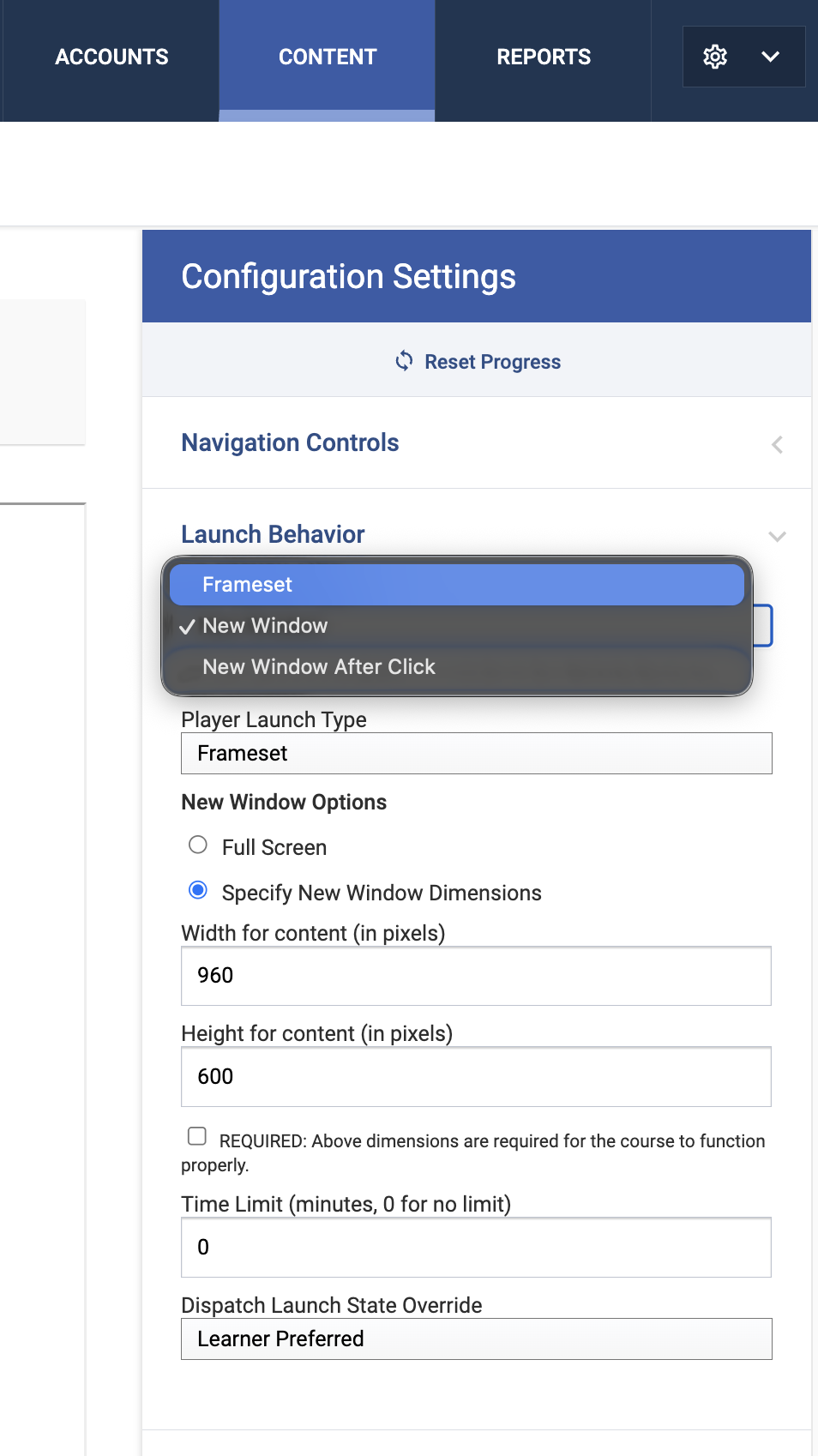
-Inside the Configuration Settings, expand the Launch Behavior section. 

-Change the SCO Launch Type dropdown to Frameset > Save your settings.
Screenshot 2026-06-10 at 2.58.24 PM.png

-This content will now default to opening in the same window when distributed to your accounts moving forward. 


If content has already been shared to an account, the previous method won't have an effect on that content, and you will have to instead make changes within the account. The next two methods are both account-specific.  

Method 2: Change Launch Behavior for a Single Course within a Specific Account 

-Navigate to the specific Account in question and click on the desired Content piece.

-In the Course Details panel, click Configure.

Screenshot 2026-06-10 at 3.03.47 PM.png
This will open the same configuration window that allows you to change the individual SCO Launch Type to Frameset

-Make your changes to Frameset > Click Save

*Note - This will change this single course to launch in the same window ONLY for this specific account.


Method 3: Set an Account-Wide Default for All Shared Content of that account

-Navigate to the specific Account, then click the Advanced tab at the top.

-From the left sidebar menu, select Content Configuration.

d913cb90-b056-41a5-ad0b-0fc1d2fe49bb.png
Change the Player SCO Launch Type dropdown to Frameset

-Check the box to Apply to Existing Content > Click Submit

*Note - This process will immediately switch all current and future content assigned to that account to open uniformly in the same window.


-If you have any questions, please send a message to support@rusticisoftware.com

Related to

Was this article helpful?

0 out of 0 found this helpful

Have more questions? Submit a request