
In the SCORM world, answers to questions are formally referred to as interactions. The SCORM 2004 3rd Edition specification defines interactions as "a collection of information." While this could theoretically be just about anything, in practice, it most commonly refers to quiz/survey questions and the learner's specific answers.
Finding this information in SCORM Cloud is very straightforward. Here is how you can pull that data depending on exactly what you are looking for:
- Navigate to your Library and select the course.
On the Course Details page, click the Reportage button.
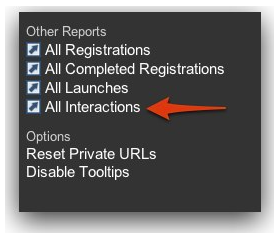
Scroll down to the "Other Reports" section and click All Interactions.
This will open up a complete list of interactions between all of your learners and that specific course.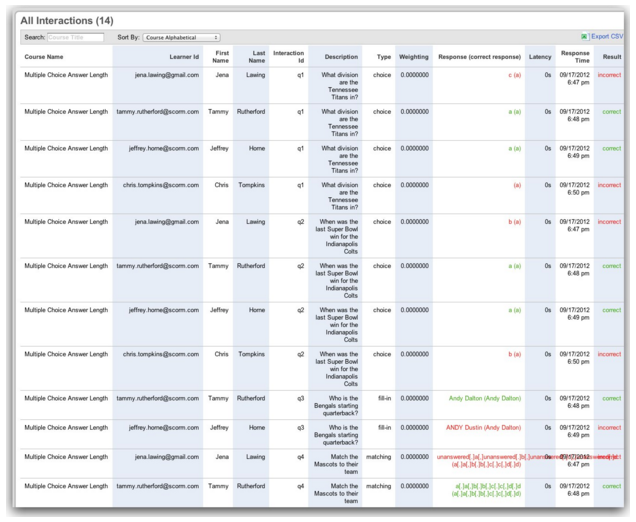
Accessing Deeper Interaction Analytics
If you want to dig into how a specific question is performing across the board (e.g., seeing how many learners chose option A vs. option B):
Select a course and enter Reportage.
Click on the Interactions widget.
3. Click on a specific Interaction ID. This will take you to a detailed data analytics page breaking down the performance and responses for that exact question.
As always, if you have any questions or need a hand finding a specific interaction, just shoot us an email at support@rusticisoftware.com!
Related to